

UNDER CONSTRUCTION
Introduction
This page describes everything related to editing an object. Some parts are specific for EMF data.
Things are described top/down:
- The actual data editor
The editor can be used to create new objects or edit existing objects.
You can only save the data if it is valid and changed. This means that all fields have to be valid and at least one field has a different value.
This is supported byObjectControlandObjectControlGroup.
An editor can be created by extending theObjectEditorTemplateclass - ObjectControl
A control providing one or more JavaFx GUI components for editing an Object.
For anObjectControlthe value is always the type of the field that is being edited. Also the object control provides information about whether something is filled in, whether it is valid and whether it is changed
Example
Example step 1
The following picture shows a simple editor for adding or editing a Person (being a former employee of a Company). In this first step we only edit the surname (a String) and retirement date (a Date).
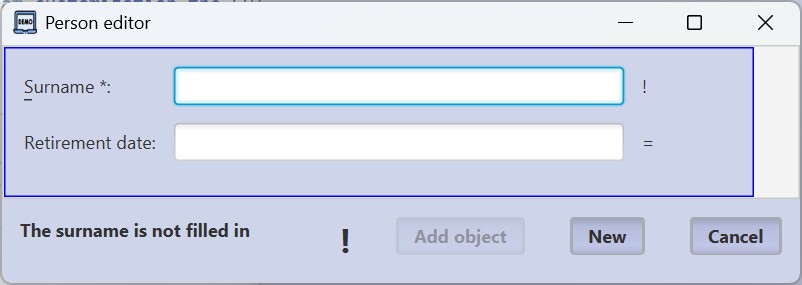
What this editor shows and what is generally needed for an editor:
- For each attribute of the Person:
- There is at least one control to edit the value.
- There is a label that describes the attribute.
- There is an indication of whether the value is mandatory or optional.
- There is an indication to indicate that the value is invalid, or that the value is changed or not.
- Edit mode
If you are editing a new object there will be an ‘Add’ button, if you are editing an existing object, there will be an ‘Update’ button.
So the editor is either in ‘Edit’ mode or in ‘Update’ mode. - Enabling the ‘Add’ button
The ‘Add’ button may only be enabled if all values are valid. - Enabling the ‘Update’ button
The ‘Update’ button may only be enabled if all values are valid and at least one value is changed. - Valid values
An entered value is valid:- if the value is optional and nothing is filled in.
- or the value is a valid value for the attribute.
- ‘New’ button
A ‘New’ button allows the user to start editing a new object. - ‘Cancel’ button
A ‘Cancel’ button allows the user to exit the editor without making any modifications. - Status information
Apart from the status information per attribute, it helps the user when you show a text describing the first invalid control. - Confirmation on unsaved data
If there are unsaved changes in the editor and the user presses ‘New’, ‘Cancel’ or the close window icon, the user shall be asked for confirmation before continuing.
Editor requirements
An editor should provide the following:
- For each attribute of the object:
- one or more controls to show/edit its value
- a label describing the attribute that is shown/edited by the control(s)
- an indication of whether a value is mandatory or optional
- for the currently entered value an indication of whether it is invalid/invalid, changed/unchanged
- At editor level:
- a button to start editing a new object (from scratch)
- an API method to start editing an existing object
- inform the user about unsaved changes
When the ‘new’ button is pressed, upon calling the method to start editing an existing object, or upon closing the editor, it shall be checked whether there are changes which haven’t been saved yet.
If so, the user shall be informed about this and he should be able to cancel the action.
Object Editor strategy
When creating an editor to edit an object you first have to think about the main strategy to use. This section describes an editor for the following strategy:
- The editor can be used to create a new object, or to edit an existing object.
- If the object being edited is null (by default), the editor is in the ‘NEW’ mode. Otherwise it is in ‘EDIT’ mode.
- All information of an object is ‘stored’ in the GUI controls and a number of lists. Together these are referred to as the GUI controls.
When a new object is set (which may be null), the information from the object is stored in the controls. If the object is null, all information is cleared.
Any user changes are only stored in the GUI controls.
Upon ‘add object’ an object is created from the controls, ‘object’ is set to this value and the ‘object ‘ is added to the database.
Upon ‘update’, the ‘object’ is updated from the controls.
Editor overview
An overview of an editor can best be given based on an example. This example the PersonEditor, which is an editor for editing a Person (who is a retired employee of a Company). In this example we use following attributes:
- Surname- a String
- Retirement date – a Date
The following diagram shows an overview of the Person Editor implementation, using the Editor building blocks from the goedegep.jfx.editor package.
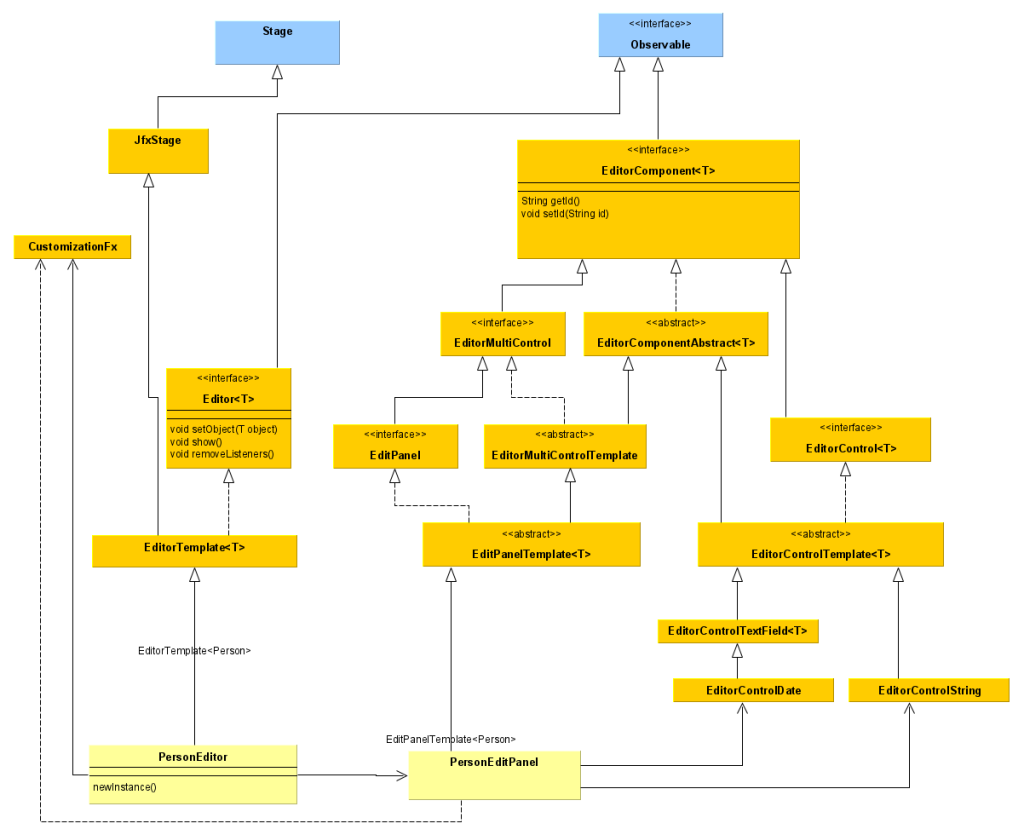
The PersonEditor is shown on the bottom left. The editor is a window with a panel where the values of the attributes can be edited, and buttons to e.g. update or add the person.
The common functionality for an editor is provided by the EditorTemplate. So the EventEditor extends this class. The EditorTemplate extends jfxStage, which itself extends Stage. Thus providing the window. It also provides the buttons.
The panel for editing the attributes is an EditPanel. In this case the PersonEditPanel. Again common functionality is provided by a template class: EditPanelTemplate.
For each attribute to be edited, the EditPanel uses an EditorControl. In this case an EditorControlString for the surname and an EditorControl date for the retirement date.
As may be clear from the diagram and the above description, for the creation of Editors, EditPanels, EditorMultiControls and EditorControls the java Template Method Design Pattern is used.
PersonEditor top down description
Using the PersonEditor
A PersonEditor can be used as follows:
- Create an instance of the editor:
PersonEditor personEditor = PersonEditor.newInstance(customization, companyService);
Where:- as always, the first parameter is a CustomizationFx for the GUI customization.
companyServiceis a service which provides a method to add a person to the company data structure.
- Upon creation an editor is in the NEW mode, which means it creates a new instance of the class being edited.
If you want to edit an existing object, call: personEditor.setObject(person) - Show the editor by calling:
personEditor.show()
Any editor should provide a ‘newInstance’ method.
PersonEditor
As you can see below the code is quite small.
public class PersonEditor extends EditorTemplate<Person> {
  private static final String WINDOW_TITLE = "Person editor";


  /**
   * Main {@code EditPanel}
   */
  private PersonEditPanel personEditPanel;

  /**
   * Factory method to obtain a new instance of a {@code PersonEditor}.
   *
   * @param customization the GUI customization.
   * @param companyService the company 'database' service.
   * @return a newly created {@code PersonEditor}.
   */
  public static PersonEditor newInstance(CustomizationFx customization, CompanyService companyService) {
    Objects.requireNonNull(companyService, "companyService may not be null");

    PersonEditor personEditor = new PersonEditor(customization, companyService);
    personEditor.performInitialization();

    return personEditor;
  }

  /**
   * Constructor
   *
   * @param customization the GUI customization.
   * @param companyService the company 'database' service.
   */
  private PersonEditor(CustomizationFx customization, CompanyService companyService) {
    super(customization, WINDOW_TITLE, companyService::addFormerEmployee);
  }

  /**
   * {@inheritDoc}
   */
  @Override
  protected void configureEditor() {
    setAddObjectTexts("Add person", "Add the person to the companies employees");
    setUpdateObjectTexts("Update person", "Update the current person");
    setNewObjectTexts("New", "Clear the controls to start entering a new person");
  }

  /**
   * {@inheritDoc}
   *
   * In this case an CompanyEditPanel is created and returned.
   */
  @Override
  protected EditPanel<Person> getMainEditPanel() {
    personEditPanel = PersonEditPanel.newInstance(customization);

    return personEditPanel;
  }
}
Overview of the implementation:
- The class extends the
EditorTemplatefor typePerson.
The EditorTemplate provides the customized window (icon and title), overall status information and action buttons. - Creating an instance of the editor
The methodnewInstance(CustomizationFx customization, CompanyService companyService)is used to create a new instance of the editor.
The first parameter is aCustomizationFxfor the GUI customization.
The second parameter is a CompanyService. This service provides a method to add a Person to the former employees of the company.
The method does two things:- Create an instance of the editor by calling the (private) constructor.
The constructor calls its parents constructor with thecustomization, a window title and the methodaddFormerEmployeeof the company service as arguments. - Call performInitialization() on the EditorTemplate.
This will call the methods: configureEditor(), getMainEditPanel()
ThisperformInitialization()method is needed, because the constructor of the EditorTemplate cannot call methods on the sub class as the sub class isn’t fully initialized at this moment.
- Create an instance of the editor by calling the (private) constructor.
- Implementation of
configureEditor()
MethodperformInitialization()of theEditorTemplatecalls this method. In this method call the methodssetAddObjectTexts(),setUpdateObjectTexts()andsetNewObjectTexts()to customize the texts of the buttons of the editor. - Implement
getMainEditPanel()
This method creates and returns an EditPanel, in this case a PersonEditPanel.
PersonEditPanel
Overview of the implementation:
- The class extends the
EditPanelTemplatefor typePerson. - Creating an instance of the edit panel
This works similar as for the editor. The methodnewInstance(CustomizationFx customization)is used to create a new instance of the edit panel.
The parameter is aCustomizationFxfor the GUI customization.
The method does two things:- Create an instance of the edit panel by calling the (private) constructor.
The constructor calls its parents constructor with thecustomizationandfalseas arguments. - Call
performInitialization()on theEditPanelTemplate.
This will call the methods:createControls(),createEditPanel(),installChangeListeners()andcreateObject().
- Create an instance of the edit panel by calling the (private) constructor.
- Implementation of
createControls()
Here you create the editor controls (in this case anEditorControlStringfor the surname and anEditorControlDatefor the retirement date) and register these controls to the edit panel (methodregisterEditorComponents). - Implementation of
createEditPanel()
Here you create the actual panel (aNode). This is the node that you return via the methodgetControl(). - Implementation of
installChangeListeners()
In this simple editor this is not needed. - Implementation of
createObject()
Here you create an object of the type that you are editing. In this case aPerson. - Other methods to implement:
fillControlsFromObject()
This is called upon starting to edit a new object. You fill the edit controls based on the value of the object.fillObjectFromControls()
This is called upon saving the object. You fill the object with the values of the edit controls.setErrorFeedback()
In this simple editor this is not needed.getValueAsFormattedText()
In this simple editor this is not needed.
Design concepts
Id
Mainly for debugging it’s important to be able to identify each object. Therefore the interface EditorComponent provides the methods setId() and getId().
These methods are implemented by EditorComponentAbstract.
Customization
Every GUI component is customized via a CustomizationFx object, which by my convention is the first parameter where needed. Therefore on creating an editor, this is shall be the first parameter and it is passed on to all other objects created by the editor.
Handling changes
At each level (from an editor control to an edit panel) changes are handled in the same way. If there is a change, e.g. because the user types text, the new internal value and status are dertermined, and then any InvalidationListeners are notified. Therefore the interface EditorComponent extends Observable. However only invalidation listeners are supported.
Note: we don’t use Properties for the status information, because listeners are then notified when the first property changes. If they then ask for other status information, this is then not yet updated. Also the strategy used here is more efficient; a client is notified once on a new value and status.
Interfaces
Interface Editor
An editor (like the EventEditor) provides a small interface.
Interface EditorComponent
setId() and getId() to set and get a unique id of the object.
Editor functional topics
In this section we discuss the different topics that the building blocks of an editor have to deal with. This shows their similarities and differences.
Creation and initialization
Editor
- Create the main EditorPanel
EditorPanel
- Create required EditorControls, sub EditorPanels and EditorMultiControls
- Create the editor panel
EditorMultiControl
- Create required EditorControls
EditorControl
- Create required EditorControls (most often just one)
Value(s), Changes
Values change:
- programmatically by calling methods like setValue()
- by the user interacting with GUI controls
Editor
EditorPanel
EditorMultiControl
EditorControl
Status
Status information is needed both within an editor building block and to the users of a building block.
Editor
The status determines what can be done in/with the editor.
- Only if all components are valid the ADD button is activated.
If the ADD button is pressed, a method is called which is set by the client upon creation of the editor. It is done this way because the editor doesn’t know how a new object has to be added. - Only if all components are valid and at the value of at least one component is changed, the UPDATE button is activated.
If the UPDATE button is pressed, the object is changed according the values of all components. - If the NEW button is pressed all components are set to default values.
If the NEW button is pressed, or the user tries to close the Editor, and there is a change in one or more components, the user shall be informed about the unsaved changes and he’s offered the option to cancel his action or ignore the changes.
Where we speak here of ‘all components’ it means all components in the main EditPanel and in its sub EditPanels. So an edit panel has to provide status information:
Invalid – one or more components are invalid
No Changes – all components are valid and none of the components is changed
Changes – all components are valid and at least one component is changed
EditorPanel
EditorMultiControl
EditorControl
GUI elements
Editor
EditorPanel
EditorMultiControl
EditorControl
EventEditPanel
The EventEditPanel is used as an example of creating an edit panel.
- Extend EditPanelTemplate
- Creating an instance of the edit panel
The method newInstance(CustomizationFx customization) is used to create a new instance of the edit panel.
As always, the first parameter is a CustomizationFx for the GUI customization.
The method does two things:- Create an instance of the edit panel by calling the (private) constructor.
The constructor calls its parents constructor with the customization as argument. - Call performInitialization() on the EditPanelTemplate.
- Create an instance of the edit panel by calling the (private) constructor.
Note that what is done here is very similar to what is done for the editor.
ObjectEditorTemplate
This class provides a template for an object editor and it provides some common functionality. So writing an Object Editor starts by extending this class.
The object being edited is typically part of a collection of objects or it is meant to be added to this collection.
Edit mode
The editor is always in one of the modes NEW or EDIT. Upon creation the editor is in NEW mode. In this mode all edit controls are filled with their default values (usually mostly empty). Upon pressing the ‘Add’ button, an object is created, it is filled with the values from the controls, it is added to the collection and the editor switches to the EDIT mode.
Upon calling setObject() with a non null value the editor switches to the EDIT mode, otherwise it switches to the NEW mode.
Layout overview (from top to bottom):
- Title bar, shows the Editor Title.
- The main editor panel.
- A panel with the action buttons.
The items in this panel are right aligned. By default it contains:- Edit status indicator:
- ‘+’ – in NEW mode and the input is valid, so you can add the object
- ‘!’ – At least one control is invalid
- ‘=’ – The controls are valid, but none of the values has changed
- ‘≠’ – in UPDATE mode, the controls are valid and there are changes.
- Cancel button: to quit the editor without making changes. This button is always enabled.
- Add/Update button:
In NEW mode this is an ‘Add’ button, which is only enabled if all controls are valid.
In UPDATE mode this is an ‘Update’ button, which is only enabled if all controls are valid and at least one control has changed. - New button: to start editing a new object. All controls are cleared (or filled with a default value) and the editor switches to NEW mode. This button is always enabled.
- Edit status indicator:
Customization
A CustomizationFx instance is passed to the constructor as the first argument.
As ObjectEditorTemplate extends JfxStage, the CustomizationFx and related ComponentFactoryFx are available to any class extending ObjectEditorTemplate (as customization and componentFactory).
Configuration
The texts and tooltip texts of the action buttons can be set.
Implementing your editor
Create a private constructor and a factory method named newInstance. The factory method has to call performInitialization().
Example:
  public static EventsEditor newInstance(CustomizationFx customization, Events events) {
    EventsEditor eventsEditor = new EventsEditor(customization, events);
    eventsEditor.performInitialization();

    return eventsEditor;
  }

  private EventsEditor(CustomizationFx customization, Events events) {
    super(customization, WINDOW_TITLE);

    this.events = events;
  }
The method performInitialization() will (apart from other things) call the following methods, that your editor will normally implement/override:
- configureEditor()
Override this method to make calls to setAddObjectTexts(), setUpdateObjectTexts() and setNewObjectTexts() for setting the texts for the action buttons.
Example:
      @Override
      protected void configureEditor() {
        setAddObjectTexts("Add event", "Add the event to the events");
        setUpdateObjectTexts("Update", "Update the current event");
        setNewObjectTexts("New", "Clear the controls to start entering new event data");
}- createControls()
Create the GUI controls and add them to theobjectControlsGroup, which is provided by the template.
Also here you can perform any other initialization.
Example: - fillControlsWithDefaultValues()
- createEditPanel(rootPane)
- handleChanges()
Examples
The following classes are implementations of ObjectEditorTemplate (in order of increasing complexity):
- goedegep.events.app.guifx.EventsEditor
- goedegep.media.mediadb.trackeditor.guifx.TrackEditor
- goedegep.media.mediadb.albumeditor.guifx.AlbumEditor
This is a complex example, as there are different sub panels for discs. - goedegep.invandprop.app.guifx.InvoiceAndPropertyEditor
This is a tricky example as it is an editor for an Invoice, a Property or both.
ObjectControl (Interface goedegep.jfx.objectcontrols.ObjectControl)
This interface defines a set of methods for GUI controls to show and enter object values.
Many GUI controls, like javafx.scene.control.TextField, represent the value of an object, but the control itself is unaware of the object type. Therefore a set of controls is defined which are object type aware.
For example, if you want to show a LocalDate as text and allow the user to edit this value:
- To show the
LocalDate, it has to be formatted to a String.
In this interface this is taken care of by the methodsetValue(), where the formatting is to be done by the implementing class. - The other way around is even more complicated.
To use the text from theTextFieldto set aLocalDate, you first have to parse the text to create aLocalDate. In this interface this is taken care of by the methodgetValue(), where the parsing is to be done by the implementing class.
But there is more, you want to know whether the user has to enter a value, has entered a value and whether the value is valid. This is discussed below.
Optional
An edit window typically has several controls. A ‘save’ button is often only enabled if all required values are filled in. The isOptional() method can be used to check on this. An implementing class typically provides a constructor with an ‘isOptional‘ parameter.
Filled in
Indicates that something is entered, it may be valid or not. The isFilledIn() method can be used to check on this.
Valid
An edit window typically has several controls. A ‘save’ button is often only enabled if all required values are valid.
Valid is defined as:
- Either: the control is optional and nothing is filled in
- Or: What is filled in can be translated to an object of the type of the control.
The isValid() method can be used to check on this.
The Value
The value (of type T) represented by the control can be set via setValue() and obtained via getValue().
Changes
In an editor you usually provide feedback to the user whether he has changed something or not. Therefore this interface provides support for detecting changes. When the value of the control is programmatically changed (via setValue()) this value is stored as a reference value. Any call to isChanged() returns true if the current value of the control differs from this reference value, otherwise it returns false.
The GUI controls
There is of course always at least one GUI control representing the value, e.g. a TextField. This control can be obtained via getControl().
Besides this there is a status indicator control, which can be obtained via getStatusIndicator().
If an ObjectControl has more GUI controls (like e.g. the ObjectControlFileSelecter) this control will provide extra methods to obtain these controls.
Textual representation
As the control often already represents the value in a textual form, this text can also be obtained via getValueAsFormattedText().
Textual error description
In case of an error an error message can be obtained via getErrorText().
Listeners
This interface extends the javafx.beans.Observable interface. It notifies listeners upon any change in the control.
For convenience there is an extra method removeListeners() to remove all listeners.
How to write an EditorControl
Of course you can simply implement this interface, but in general it is advised to extend the class ObjectControlTemplate and follow the documentation within that class.
Design
Strategy
Classes
The following diagram shows the provided classes.
package goedegep.jfx.editor
interface EditorComponent<T>
This is the common interface for all editor components.T is the data type handled by the component.
- Object identification – id
All objects can have an identification string (id), which is mainly used for debugging.
Methods:setId()andgetId(). - Optional versus mandatory – optional
Any value in the editor is either optional or not, in which case it is mandatory. Optional means that no value has to be provided.
This is something that doesn’t change while the editor is active. Therefore the ‘optional’ indication shall be set via the constructor of any implementation. The value can be obtained viaisOptional().
In an editor this is usually indicated by a ‘*’ in the label of the component. For this purpose the constantMANDATORY_SYMBOLis provided. - Filled in – filledIn
‘Filled in’ means that something is entered in a component, it may be valid or not. TheisFilledIn()method can be used to check on this. - Valid – valid
Indication of whether the information in a component is valid or not. The methodisValid()can be used to obtain this information.
Valid is defined as:- Either: the component is optional and nothing is filled in
- Or: What is filled in can be translated to a legal object of the type of the component
- Label – label
An editor component provides aLabelvia the methodgetLabel().
The text of the label is: ‘label base text’ + MANDATORY_SYMBOL + ‘:’.- the ‘label base text’ can be set via
setLabelBaseText()and get viagetLabelBaseText().
Mnemonic parsing will be based on this text. - the MANDATORY_SYMBOL is only there for mandatory (non optional) values
- the ‘label base text’ can be set via
- Changed – changed
Check whether the control has changed since the last call tosetValue() - Status symbol – statusSymbol
AStringwhich represents the status of the control, which can be used in the GUI to indicate the status of the control.
The value can be obtainded with the methodgetStatusSymbol().
The following symbols are defined:- NOK_INDICATOR= “!”
Symbol to indicate that a value is invalid. It may be changed or not, but that doesn’t matter, because the user has to change it to something valid. - NOT_CHANGED_INDICATOR = “=”
Symbol to indicate that a value is valid and not changed. - CHANGED_INDICATOR = “≠”
Symbol to indicate that a value is valid and changed.
- NOK_INDICATOR= “!”
- Status indicator – statusIndicator
ANodewhich represents the status of the control, which can be used in the GUI to indicate the status of the control. The status is represented by the status symbol and there is a tooltip with a textual description.
The value can be obtained with the methodgetStatusIndicator(). - Error text – errorText
A text which explains why the control has no valid value.
This text can be obtained via the methodgetErrorText().
To provide a specific error text you can set a method to provide an error text via the methodsetErrorTextSupplier(). - Value and status change listeners – valueAndStatusChangeListener
To listen to value and status changes you can add a listerner with the methodaddValueAndOrStatusChangeListener()and remove it withremoveValueAndOrStatusChangeListener(). You can remove all listeners at once with the methodremoveValueAndOrStatusChangeListeners().
It is more efficiënt to have a single listener for value and status changes than to have separate listeners for value and status. Upon any new user input first the change in input is handled and then, when applicable, the listeners are informed. - Main GUI control
The methodgetControl()can be used to get the main GUI control.
If an implementation has more than one GUI control, separate methods to obtain these controls have to be provided. - Current value – currentValue
This is the value currently represented by the controls.
This value can be obtained with the methodgetCurrentValue(). Note that this method doesn’t change the value being edited. - Value as formatted text
This is a textual representation of the value that can be used in the GUI or at least for debugging purposes.
This is specifically useful for components that use a formatter, which is then used to provide this text. Then the client doesn’t need its own formatter.
This value can be obtained with the methodgetValueAsFormattedText(). - Focused Property
Indication of whether the component has focus or not.
It can be obtained with the method focusedProperty(). - Template method createControls()
Create the GUI controls and perform any further initialization. The template classes will call this method on the implementations extending these classes.
class EditorComponentAbstract<T>
This is the common part of the implementation of the EditorComponent interface.
Again T is the data type handled by the component.
CustomizationFx– customization
All my GUI code uses this for the GUI customization. The value is passed in as the first parameter of the constructor.ComponentFactoryFx– componentFactory
All my GUI code uses this factory to create GUI components. It is obtained via the customization.- Object identification – id
The id is aprivate String. The methods setId() and getId() set and get this value. - Optional versus mandatory – optional
The optional indication is represented by aprivate boolean. The methodisOptional()simply returns this value. It is set by the constructor, based on theoptionalinput parameter. - Filled in – filledIn
The filledIn status is represented by aprotected boolean. The methodisFilledIn() - Valid – valid
The valid status is represented by a protected boolean. The methodisValid() simply returns this value. Setting the value is the responsibility of any sub class. - Label – label
ThelabelBaseTextis a private String. It is set by the methodsetLabelBaseText().
The label itself is also kept in aprivate String. The methodgetLabel()creates this label if it doesn’t exist yet and returns it.
This method also installs the mnemonic parsing. - Changed – changed
The changed status is represented by aprotected boolean. The methodisChanged()determineChanges()which checks whether a provided value differs from the reference value. By default this method just usesObjects.equals(), but you can set aComparatorwith the methodsetComparator()and then this will be used. - Status symbol – statusSymbol
The methodgetStatusSymbol()just returns the text of the status indicator obtained viagetStatusIndicator(). - Status indicator – statusIndicator
The status indicator is a Label. The methodgetStatusIndicator()creates this label if it doesn’t exist yet. It then callsupdateStatusIndicator()to update its value.
The methodupdateStatusIndicator()sets the label text to the right symbol, and sets a tooltip text with a textual description. - Error text – errorText
The errorText is held in aprotected String. Also there is aSupplier<String> errorTextSupplierwhich can be set with the methodsetErrorTextSupplier().
If theerrorTextSupplieris set, the methodgetErrorText()calls this for the error text, otherwise theerrorTextis returned. Setting theerrorTextis the responsibility of any sub class. - Value and status change listeners – valueAndStatusChangeListener
For this a ValueAndOrStatusChangeListenersManager is used. The related methodsaddValueAndOrStatusChangeListener(),removeValueAndOrStatusChangeListener(),removeValueAndOrStatusChangeListeners()andnotifyValueAndOrStatusChangeListeners()just call the related method on this ValueAndOrStatusChangeListenersManager. - Main GUI control
This class (this level of implementation) doesn’t provide the control(s), so the methodgetControl()has no implementation here. - Current value – currentValue
Also the method getCurrentValue() has no implementation here. - Value as formatted text
Also the methodgetValueAsFormattedText() has no implementation here. - Focused Property
There is apublic ReadOnlyBooleanProperty focusedProperty. The methodfocusedProperty()uses this to return theReadOnlyBooleanProperty.
With the methodsetFocused()the value of thefocusedPropertycan be set.
TODO Why is the methodfocusedProperty()in the EditorComponent andsetFocused()here? - Template method createControls()
Also the methodcreateControls() has no implementation here.
interface EditorControl<T>
This is the interface for an editor control. It extends the EditorComponent interface.
Again T is the data type handled by the editor control.
This interface only adds methods to set and get the value; setValue() and getValue().
Although the value is an object, we use the term value as the object is always a simple, unmutable value. For example an Integer, String or Date.
class EditorControlTemplate<T>
This is the template for writing editor controls. It implements the EditorControl interface and extends EditorComponentAbstract.
Again T is the data type handled by the editor control.
value
The current value of the control.referenceValue
Reference value to check for changes, initially set tovalue.- creating an editor control
After creation of the sub class, the sub class has to callperformInitialization().
This method calls the following methods on the sub class:createControls()
In this method you create the GUI controls. Most often there is just one control; a text field, a check box, etc.. However sometimes there’s more than one control. For a file selection you may have a text field and a file chooser, where the user can use either of the two to select a file. (and you will have to keep the two in sync).
Sometimes it is nicer to redraw a value when a control loses focus. For example a user may enter a date as 1-5-2000. Upon focus lost you may change this to 01-05-2000, if this is how you show dates in your application. For this an implementation has to callregisterControls()for all created controls. This template will than listen to focus lost on each control and callsredrawValue()on theEditorControl.fillControlsWithDefaultValues()
Here you fill the controls, created in the previous step, with default values.
In this class this method is declared as abstract.
- Setting the value programmatically; method
setValue()
This method detemines the new status information. When this method is called the changed status is by definition false.
The methodsetErrorFeedback()is called with the valid data value. In this class this method is declared as abstract.
The methoddetermineChanges(), fromEditorComponentAbstract, is used.
The methoddetermineValidity(), fromEditorComponentAbstract, is used.
The methodfillControlsFromObject()is called, which is defined in this class.
The methodupdateStatusIndicator(), fromEditorComponentAbstract, is called.
If applicable listeners are notified of any changed value/status by callingnotifyValueAndOrStatusChangeListeners(). - Handling new user input
This is about handling the fact that the user has done something with a control (e.g. type text or click on something).
The handling is similar as forsetValue(), but now the value comes from the source control.
MethoddetermineFilledIn()is called to determine whether something is filled in. In this class this method is declared as abstract.
MethoddetermineValue()is called to obtain the value. In this class this method is declared as abstract.
MethodupdateNonSourceControls()is called to update other controls than the source control. In this class this method is declared as abstract.
class EditorTemplate
This is a template class for creating an editor. The class extends JfxStage and implements the Editor interface.
- GUI customization
An instance of aCustomizationFxis passed to the constructor. This customization is used for every GUI item created by the template. - Window title
The window title is passed to the constructor and this is passed on to the constructor of the parent class. - Adding new objects
When you save a new object, it has to be added to something. For this you pass on aConsumerto the constructor, which is called when the user presses the save button.
Writing an editor
The editor
The edit panels
Editor controls
You can write an editor control from scratch by just implementing the EditorControl interface.
However it’s much more convenient to extend the EditorControlTemplate for the data type of your control. This is explained in this section.
- How clients create an instance of your control
After constructing an instance of your control, the methodperformInitialization()has to be called (on the template). This should not be the responsibility of a user of your control, so it should be done while creating the instance.
There are different ways to do this.- using a factory method getInstance() and a private constructor. Example:
public MyEditorControl getInstance() {
    MyEditorControl myEditorControl = new MyEditorControl();
    myEditorControl.performInitialization();
    return myEditorControl;
} - using the Builder pattern, where the
build()method of the builder does the same asgetInstance()above.
- using a factory method getInstance() and a private constructor. Example:
- Implement the method
createControls()
Here you first create the GUI controls.
Call registerControls() for all controls.
IfObjects.equals()is not good enough to check for changes, callsetComparator()to set a Comparator. - Implement the method
fillControlsWithDefaultValues() - Implement the method
fillControlsFromObject() - Implement the method determineValue().
- Implement the method
setErrorFeedback() - Implement the method
redrawValue()